

Digital signage on Google TV.
Sideload the CastWize Android player on a Google TV smart TV, a Chromecast with Google TV or a Google TV Streamer, pair it with a code, and manage the screen from your browser.
A Google TV is an Android TV, and that's what the player is built for
Google TV is the home screen Google puts on top of Android TV OS. You find it on smart TVs from several manufacturers and on Google's own streaming devices: the Chromecast with Google TV and its successor, the Google TV Streamer. Underneath, they all run Android TV OS, which is exactly what the CastWize Android player is made for.
The player declares itself as a TV app: it doesn't need a touchscreen, it shows a banner tile among your apps, it opens full screen in landscape, and it is controlled entirely from Studio, so you never need the remote after setup. It is the same app and the same rendering engine as on every other Android device, so a layout looks the same as on a Windows PC or a Raspberry Pi.
There is one extra step compared with installing an ordinary app: the CastWize player isn't on Google Play yet, so you install it yourself ("sideload" it). This page walks through that, and is honest about the parts that work differently on Google TV.
Who a Google TV player suits
Screens that already run Google TV
If the TV on the wall has Google TV built in, the player can run on the TV itself with no box behind it.
A Chromecast with Google TV in a drawer
A spare streamer plugs into any TV's HDMI port and turns it into a managed signage screen.
Simple, low-cost screens
Menus, promotions, waiting-room loops and announcements, managed from a browser for $5 per screen per month.
Which Google TV devices work
Anything running Android TV OS with Google TV that lets you install apps from outside Google Play can run the player. In practice:
| Device | Works? | Notes |
|---|---|---|
| Smart TVs with Google TV built in | Yes | Install the player on the TV itself. Menu names vary a little by brand. |
| Chromecast with Google TV (4K and HD) | Yes | Plugs into HDMI. Needs a Google account during its own setup. |
| Google TV Streamer | Yes | Google's current streaming box, also Android TV OS. |
| Other Android TV boxes and TVs | Yes | See the Android TV player page; the steps are the same. |
| Chromecast without Google TV (cast-only dongles) | No | These only receive casts from a phone; they can't install apps. |
| Amazon Fire TV | No | Fire TV isn't supported. |
Every Google TV device runs Android 10 or newer, comfortably above the player's minimum of Android 7.0. The player also needs an up-to-date Android System WebView, which Google TV devices update through Google Play.
How to set up Google TV for digital signage
Allow 15 to 20 minutes. There are two ways to get the player onto the device: from a computer with Android's adb tool, or on the TV with a downloader app. Steps 1 and 2 are the same for both.
- 1
Turn on developer options
On the Google TV, open Settings → System → About, scroll to Android TV OS build and click it seven times, until a message says you are now a developer. A new Developer options menu appears under Settings → System.
- 2
Turn off sleep and the screensaver
In Settings → System, look for Energy (or Power & energy) and set the device not to turn off when inactive, and set the Ambient mode screensaver to off or the longest interval. Names vary by model. The player keeps the screen on while it is in front, but the device's own power settings can still switch it off.
- 3
Option A: install from a computer with adb
In Developer options, turn on USB debugging. Find the device's IP address under Settings → Network & Internet. On a computer on the same network with Google's free Android SDK Platform Tools, download the Android player from castwize.tv/support, then connect and install (use your device's address and the real file name). Allow the connection when the TV asks.
adb connect 192.168.1.50 adb install CastWize-Player.apk - 4
Option B: install on the TV with a downloader app
From Google Play on the TV, install a file-downloader app that has a built-in browser. Then allow it to install apps: Settings → Apps → Security & restrictions → Unknown sources, and turn it on for that app. Open the downloader, go to castwize.tv/support, choose Download for Android, and install the file when it finishes. You can turn Unknown sources off again afterwards.
- 5
Open CastWize Player and allow start on boot
Find CastWize Player in your apps (on the Google TV home screen, Apps, then See all) and open it. The first time, it shows a Start on boot screen. Choose Allow "Display over other apps" and switch it on for CastWize Player, then press Back; the screen should now say On. Choose Back to the player. Google TV only lets an app open itself after a restart with this permission. CastWize doesn't draw over other apps. If your model has no such setting, the screen shows a one-line adb command that switches it on.
- 6
Note the pairing code
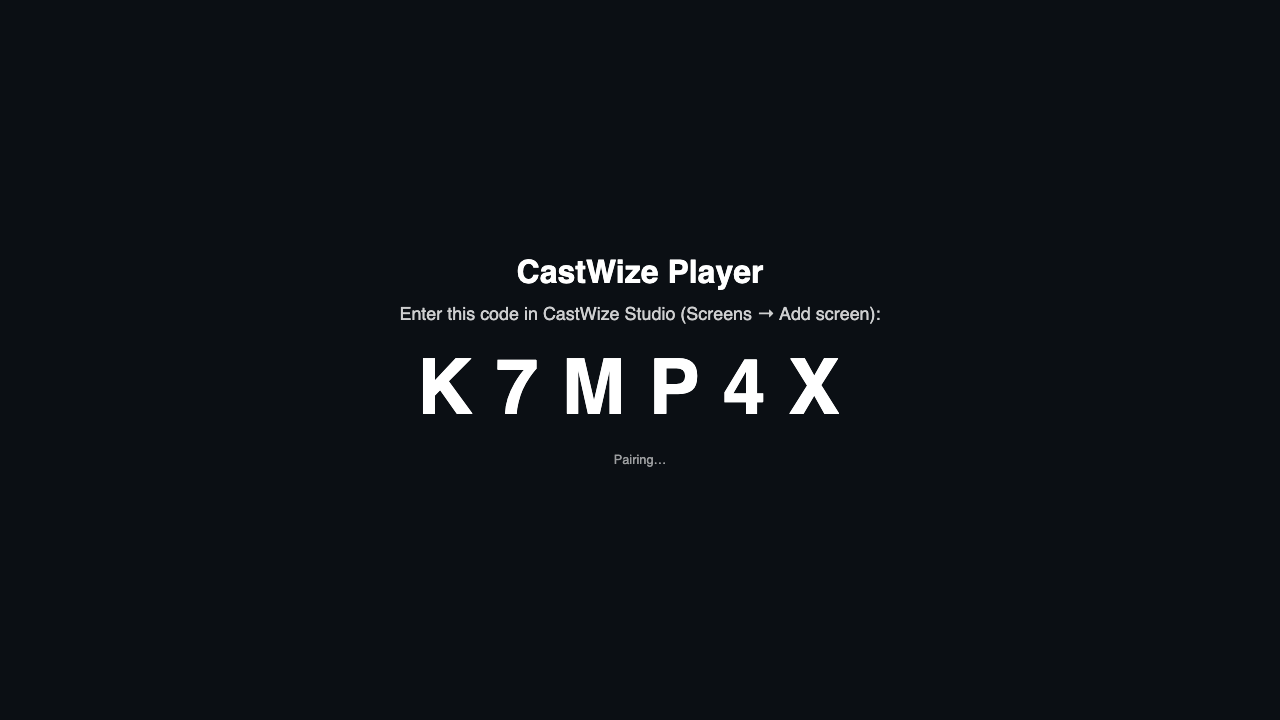
The player now shows a 6-character pairing code, full screen. Codes leave out easily confused characters and are valid for 15 minutes; a new one appears by itself if it runs out.
- 7
Add the screen in CastWize Studio
On any computer or phone, sign in to CastWize Studio, open Screens, click Add screen, type the code and give the screen a name. The TV picks it up within a couple of seconds. Choose a playlist for each zone and click Publish.
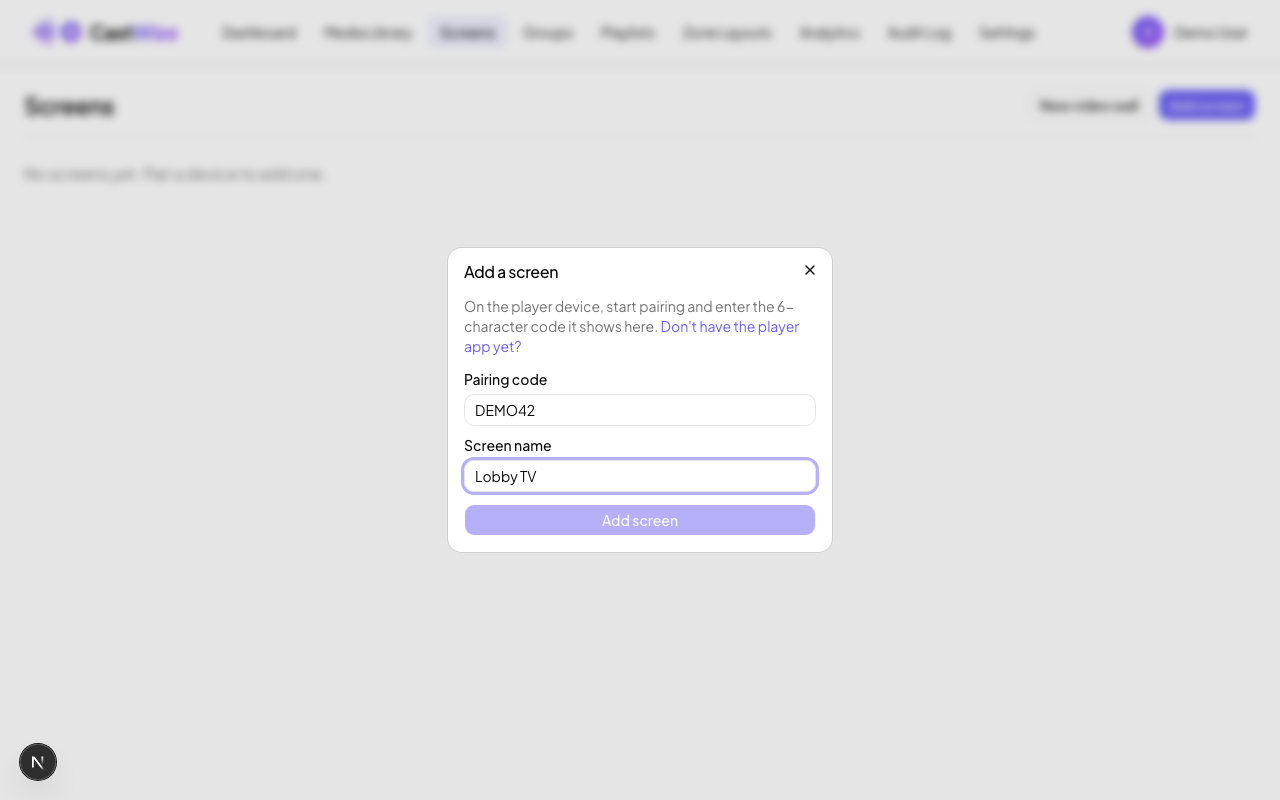
Screens → Add screen in Studio (demo account). - 8
Test a power cut
Unplug the device, plug it back in and check that the player comes back without the remote. If it stops on the Google TV home screen, see the start-up note below before you mount the screen.
What the player does on Google TV
- A proper TV app
- It shows a banner tile in your apps, runs in landscape, needs no touchscreen and works with Ethernet-only devices.
- Full screen, no remote needed
- Once paired, everything is controlled from Studio. The remote is only needed for setup.
- Watchdog
- A background service checks the player is still working and brings it back if it hangs.
- Keeps playing through internet drops
- Media is cached on the device (up to 500 MB) and keeps playing if the Wi-Fi drops. After a restart with no internet, it plays the content it saved last.
- Automatic update checks
- The player checks for new stable versions every four hours. On a normal install, Android asks someone at the TV to confirm the update.
- Remote management
- Refresh, restart the app, take a screenshot, clear the cache and read logs from Studio, and see device health such as Wi-Fi signal, storage and uptime.
- Whole-screen screenshots
- Turn on the CastWize remote screenshots setting once under Settings → Accessibility (Android 11 or later), and screenshots show the whole screen rather than only the player content.
Start-up after a power cut on Google TV
The player registers to open when the device finishes starting up. Android 10 and later, which every Google TV device runs, block an app from opening itself in the background, including at start-up, unless the app is allowed to "Display over other apps" or is the Device Owner. That's why the player asks for this permission during setup. You can check or change it any time: hold OK on the remote for two seconds while the player is on screen to open its Start on boot screen.
We haven't tested every Google TV model, so test it on yours: unplug the device, plug it back in, and see whether the player comes back without the remote. If the setting isn't available on your device and the adb command doesn't help, the Device Owner setup described below also lets the player start by itself.
Kiosk lock, remote reboot and silent updates (Device Owner)
On a normal install, anyone with the remote can press Home and leave the player, Studio can restart the app but not the device, and updates need a click on the TV. Making the CastWize player the device's Device Owner, with one adb command, fixes all three: the screen is locked to the player, Reboot in Studio restarts the device, and new versions install silently.
The catch on Google TV: Android only allows a Device Owner on a device with no accounts on it, and Google TV streamers ask for a Google account during their own setup. You would have to remove every account under Settings → Accounts & profiles first, which also takes away Google TV's personalised home screen and Google Play on that device. It is worth it for a screen in a public place; for a screen behind a counter, the normal install is usually enough. Our help article on Android Device Owner setup has the exact steps.
Google TV or a Windows mini PC?
A Google TV device is the cheapest way to put a managed screen on a wall, and it is fine for images, menus, text, widgets and 1080p video. A Windows mini PC costs more but updates itself without anyone at the TV, can be rebooted from Studio without special setup, and has more power for busy multi-zone layouts. Our buyer's guide to mini PCs and media players for digital signage compares the options.
Troubleshooting on Google TV
- I can't find Unknown sources or Developer options
- Developer options only appear after you click Android TV OS build seven times under Settings → System → About. Unknown sources is under Settings → Apps → Security & restrictions, and lists only apps that have asked to install something.
- adb connect fails
- Check that USB debugging is on, that the computer and TV are on the same network, and that you allowed the connection on the TV. On some models the option is called Wireless debugging and asks you to pair first.
- The player doesn't appear among my apps
- Open Apps, then See all, on the Google TV home screen. If it still isn't there, the installation didn't finish: install the file again.
- The TV shows "Player page did not finish loading"
- Update Android System WebView from Google Play on the device. The player uses it to draw your content.
- The screen goes dark during the day
- Check the device's Energy settings, the Ambient mode screensaver, and the TV's own sleep or eco timer.
- Someone pressed Home and the player disappeared
- Open CastWize Player again from Apps. To stop it happening, set the device up as Device Owner (kiosk lock).
Limits to know about
- The player isn't on Google Play yet: it's installed from an APK, as above.
- Cast-only Chromecast dongles (without Google TV) can't run apps and aren't supported.
- Video and streams play muted; there is no audio output for now.
- Without Device Owner: no kiosk lock, no remote reboot, and updates need confirming on the TV.
- Device Owner needs a device with no accounts on it, which on Google TV means giving up Google's personalised home screen on that device.
- Whole-screen screenshots need Android 11 or later and the CastWize accessibility setting turned on.
We haven't tested the player on every Google TV model. Install it and run your real playlist, including a power-cut test, before you mount the screen.
Pricing
One flat plan: $5 per screen per month, every feature and every player included, no tiers and no contract. Your first screen is free for 30 days with no credit card. See the pricing page for the calculator.
Google TV: FAQs
Read next
Ready to put your first screen up?
$5/screen/month, first screen free for 30 days, no credit card required.