

Coffee menu board template
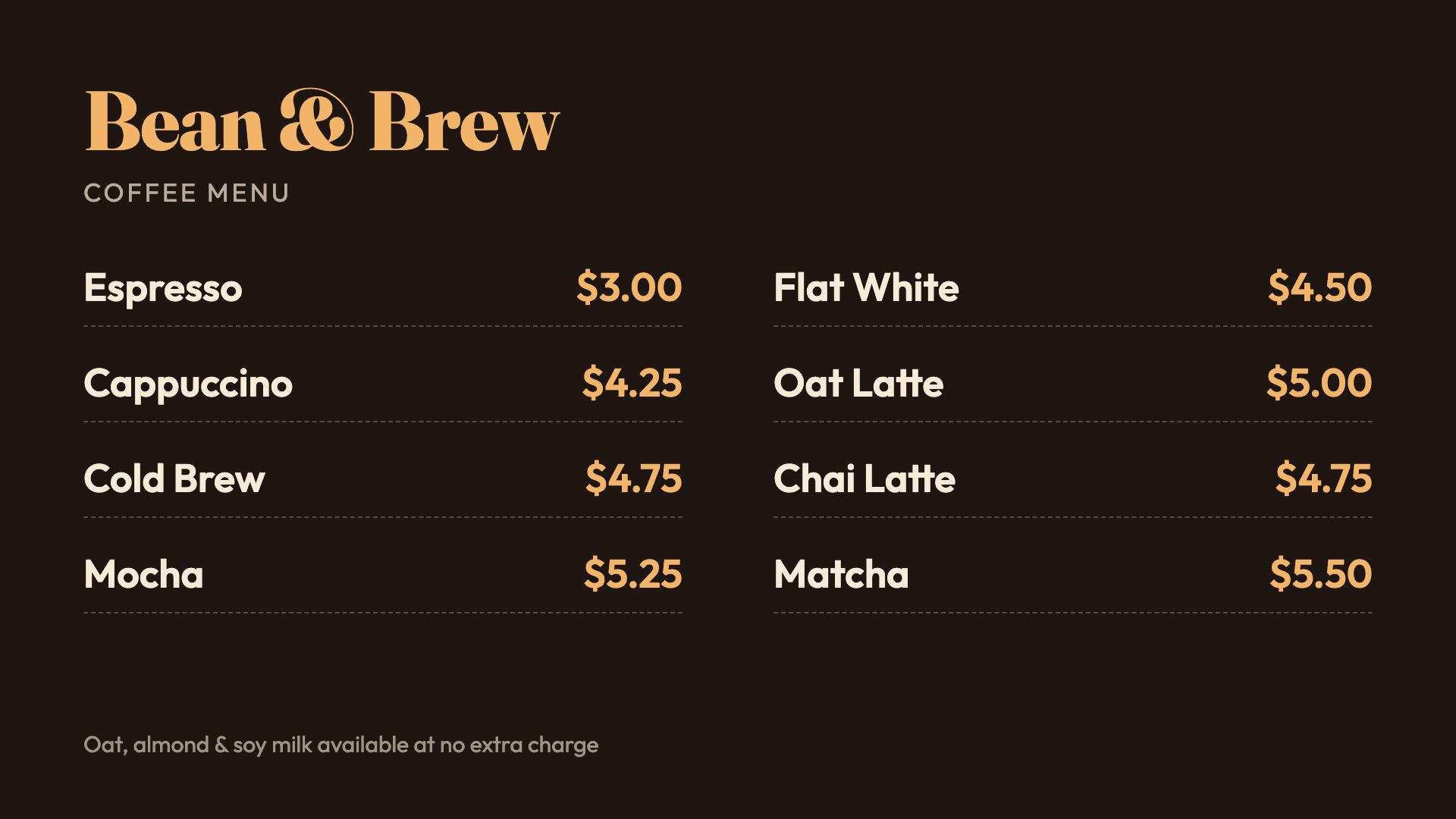
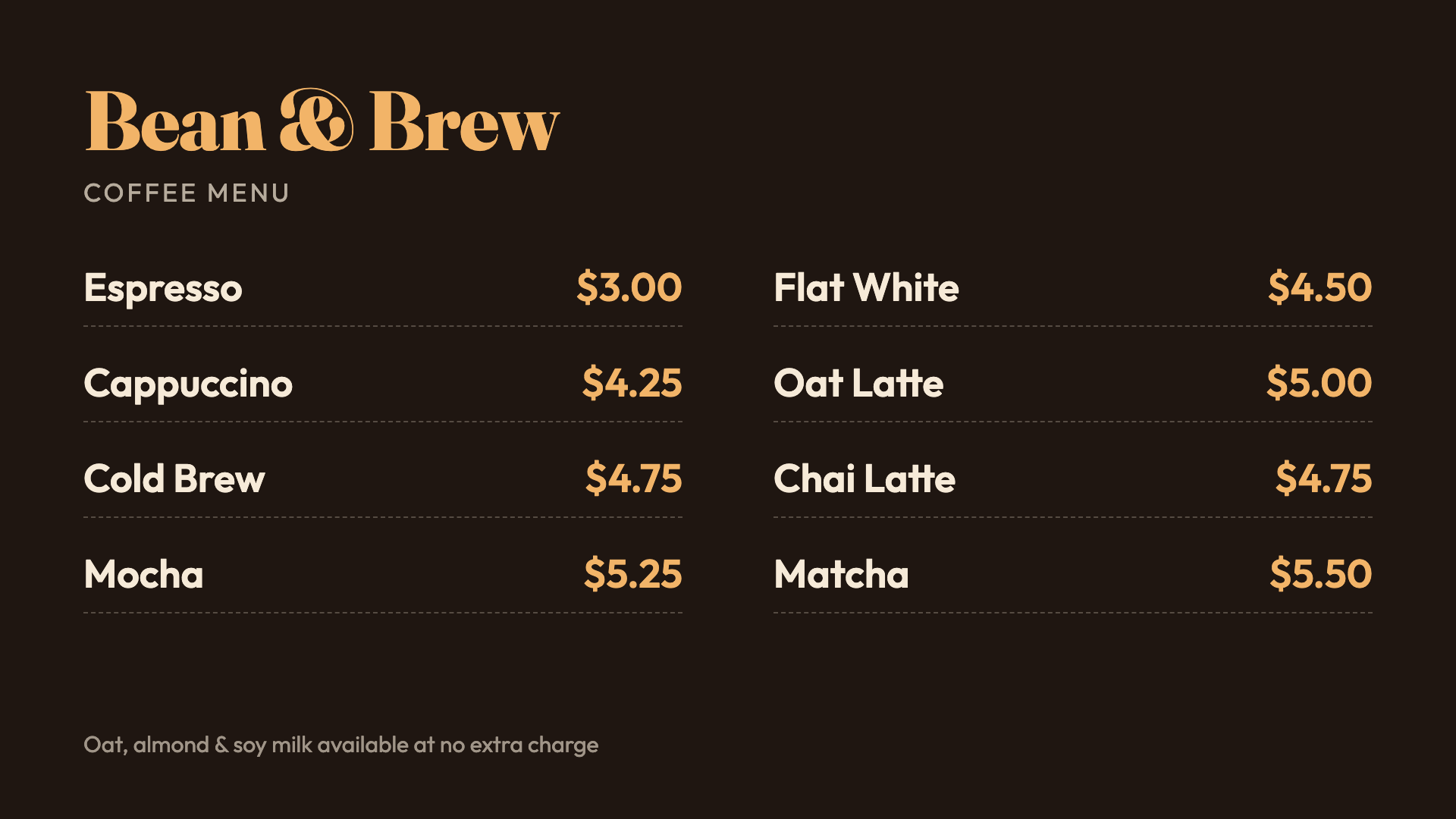
Eight drinks and their prices in two columns, dark and easy to read from the queue.
1920×1080 PNG (Full HD, 16:9). Free for your own business, on any screen, in any software.
Download PNGWhat it's for
The coffee menu is the screen people read most in a café, usually from the back of the queue. This template keeps it simple: a café name at the top, eight drinks in two columns with dotted rules, and prices in a warm amber that stands out against the dark brown background.
It's built for a landscape TV mounted above or behind the counter. Two columns keep each line short enough to read at three or four metres, and the note along the bottom has room for the milk options or an allergy line.
What's on it
- Café name ("Bean & Brew") and the heading "Coffee menu"
- Left column: Espresso $3.00, Cappuccino $4.25, Cold Brew $4.75, Mocha $5.25
- Right column: Flat White $4.50, Oat Latte $5.00, Chai Latte $4.75, Matcha $5.50
- Footer note: "Oat, almond & soy milk available at no extra charge"
The words are part of the image: change them in any image editor, or rebuild the slide in CastWize with text objects in the colours below.
How to use it in CastWize
- 1
Upload it and add it to a playlist
Download the PNG and upload it in Studio's Media Library. Open a playlist (or create one), click Add slide, choose Image and pick the file. It fills a landscape screen exactly.
- 2
Keep it on all day
Assign the playlist to the counter screen with no time rule, so the menu is the screen's everyday content.
- 3
Add a second zone if you have specials
Choose a split-screen zone layout and put the menu in the large zone and a specials playlist (the seasonal templates) in the small one. Each zone plays its own playlist.
- 4
Change prices in one place
When a price changes, upload the edited image and swap it in the slide. Every screen with the playlist updates within seconds.
- 5
Publish
Assign the playlist to your screens and publish. They download the image and show it within seconds, and keep showing it if the internet drops.
Make it yours
- Two counters, same menu? Put both screens in a group and assign the playlist once.
- If you change prices often, rebuild the menu with text objects in Studio so a price is a quick text edit rather than a new image.
- A QR code widget in the corner linking to your full online menu or ordering page works well on this layout's empty bottom-right area.
Colours
Use these in a text object's colour and background to match the template.
- Background
#1f1611 - Item names
#f6ead8 - Prices and name
#f2b468
Put it on a screen today
$5/screen/month, first screen free for 30 days, no credit card required.